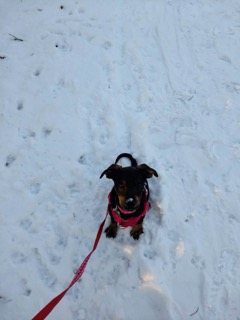
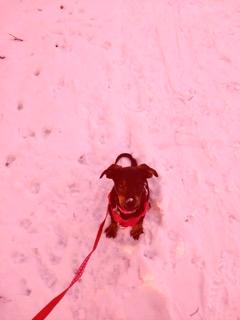
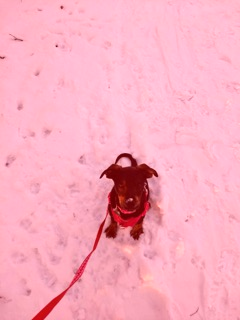
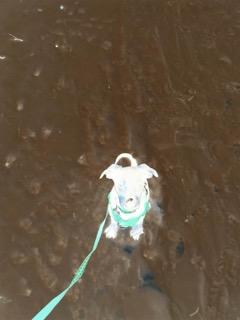
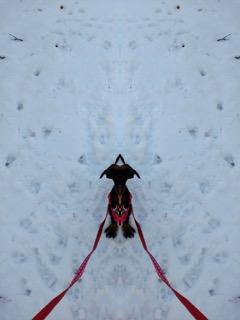
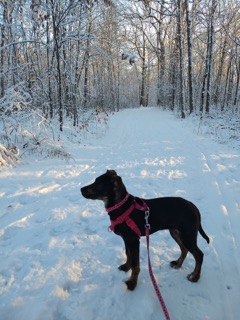
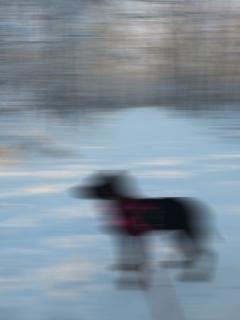
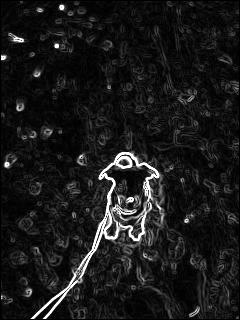
puppy-side.jpg: another picture of Leila we’ll use for testing the blurring technique.
rose.jpg: a picture of a rose we’ll use for the sepia technique.
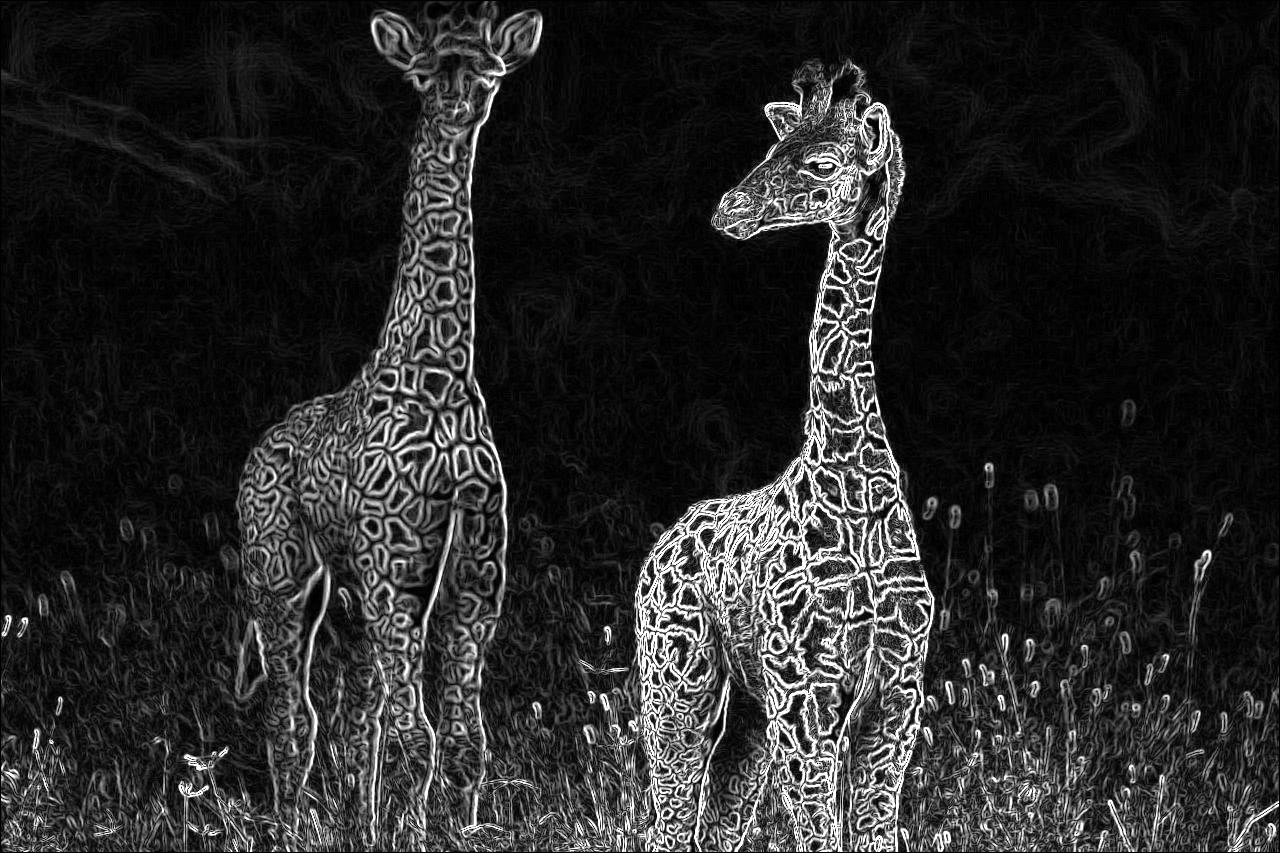
giraffes.jpg: a picture of giraffes we’ll use for edge detection.
Images as a 2-D structure
We can think of images as a “2-D” structure, i.e., the image has a width and a height and each pixel has a position described by specific row and column. For our purposes, let’s assume that (0, 0) is the top-left corner of the image. We could imagine a 3×3 image as having the following structure. The pixel in the exact middle would have row and column indices of 1, and in this example, a value (190, 177 168). In this example, the values are 3-tuples, representing the red, green and blue (RGB) color components of that pixel (each component is the range [0-225]). An all black pixel would have the value (0, 0, 0), an all white pixel (255, 255, 255), a red pixel (255, 0, 0), etc.
Indices
Col
0
1
2
Row
0
(108, 85, 71)
(149, 131, 121)
(210, 201, 196)
1
(106, 87, 73)
(190, 177 168)
(220, 215, 211)
2
(103, 87, 74)
(208, 199, 190)
(223, 219, 216)
Today we will store and manipulate images as 2-D structures using the Pillow Python Imaging Library. To run today’s code you will need to have the Pillow library installed. When you did the Python setup on the first day of the semester, the Pillow library should have already been installed, but just in case you cannot run import pillow in the shell, then try to exit() to a Terminal (or go directly to a Terminal by clicking Terminal -> New Terminal) and type:
python-m pip install pillow
Instead of directly interfacing with Pillow, we want to focus on writing nested for loops to process pixels in an image. We’ll use our own module called middimage to do this. The middimage modules provides two classes: Pixel and Image. The Pixel class simply stores the RGB components corresponding to a particular pixel and provides some overloaded operators for convieniently processing images:
+ (via __add__) to obtain a new Pixel with components that are the sum of the components of two Pixels.
- (via __sub__) to obtain a new Pixel with components that are the components of the first Pixel minus the second one.
* (via __mul__ and __rmul__) to obtain a new Pixel with components multiplied by some number. The number can be on the left (performed by __rmul__) or on the right (performed by __mul__).
** (via __exp__) to obtain a new Pixel with components raised to some power.
/ (via __truediv__) to obtain a new Pixel with components divided by some number. This function is useful for averaging.
The Image class provides some methods to load an image from either a URL or local file, or an empty image that is simply initialized with a desired width and height. There are also methods for getting and setting pixels at specific rows and columns. For example, the following code loads an image from a URL (a picture of my dog when she was a puppy), and then “red shifts” one pixel by adding 100 to the red-component.
img = Image("https://philipclaude.github.io/csci146f25/classes/puppy-front.jpg")# Retrieve Pixel at row 100, column 120pix = img.get_pixel(100, 120)# "red shift" pixel by adding 100 to red componentpix.red +=100# Modify image by overwrite pixel at row 100, column 120 with new valueimg.set_pixel(100, 120, pix)img.show()
The result does not look that much different (we just changed one pixel) but if we applied to the same transformation to all the pixels, we should see something like:
Transforming 2-D structures with nested loops
A common task is to perform an operation with or to each pixel. We will need a loop, and since the number of pixels is known at the start of the loop, a for loop is a natural choice. Performing an operation to each pixel can be implemented by performing an operation for all possible combinations of row and column positions, i.e., (0,0), (0, 1) … (2, 2) in the 3×3 example above. All combinations of multiple sequences, in this case, the row and column indices, is readily implemented with nested loops. For example the following code
Row: 0 Col: 0 Linear index: 0
Row: 0 Col: 1 Linear index: 1
Row: 0 Col: 2 Linear index: 2
Row: 0 Col: 3 Linear index: 3
Row: 1 Col: 0 Linear index: 4
Row: 1 Col: 1 Linear index: 5
Row: 1 Col: 2 Linear index: 6
Row: 1 Col: 3 Linear index: 7
Row: 2 Col: 0 Linear index: 8
Row: 2 Col: 1 Linear index: 9
Row: 2 Col: 2 Linear index: 10
Row: 2 Col: 3 Linear index: 11
Here the outer loop iterates over all rows, while the inner loop iterates over all columns. Since the loops are nested, we only advance to the next row, the next iteration of the outer loop, after we have iterated through all columns (for that row). In the output we should observe all combinations of row and column indices. We also see a common pattern for computing a “linear” index, that is an index if we traversed all the elements in row-order. The last is common way of iterating through a “2-D” structure stored in a list or other “1-D” structure. The loop below does the reverse mapping, i.e., translating from a linear index to the associated rows and columns. The loop below will print the same values as above.
ROWS =3COLS =4for i inrange(ROWS * COLS): row = i // COLS col = i % COLSprint("Row:", row, "Col:", col, "Linear index:", i)
Row: 0 Col: 0 Linear index: 0
Row: 0 Col: 1 Linear index: 1
Row: 0 Col: 2 Linear index: 2
Row: 0 Col: 3 Linear index: 3
Row: 1 Col: 0 Linear index: 4
Row: 1 Col: 1 Linear index: 5
Row: 1 Col: 2 Linear index: 6
Row: 1 Col: 3 Linear index: 7
Row: 2 Col: 0 Linear index: 8
Row: 2 Col: 1 Linear index: 9
Row: 2 Col: 2 Linear index: 10
Row: 2 Col: 3 Linear index: 11
Finishing Red shift
Using the nested loop structure above, we can readily “red-shift” the entire image by applying the transformation above to every pixel, not just one. We will use similar nested loops, but the ranges are determined by the height and width of the image (not by constants).
TipShow an implementation for red_shift
def red_shift(in_file, out_file):"""Red shift image, saving result to local file Args: in_file: String with URL or filename to original image out_file: String filename with image extension to save modified image """# Load image img = Image(in_file) out = Image(img.get_size())# Iterate over all pixels, shifting red component by 100for row inrange(img.get_height()):for col inrange(img.get_width()): pix = img.get_pixel(row, col) out.set_pixel(row, col, Pixel(pix.red +100, pix.green, pix.blue))# Save output image to local file out.save_image(out_file)
TipThis seems like a natural task for a vectorized approach? Could we use NumPy?
Yes! The Pillow library doesn’t directly expose the image as a NumPy array, but it does enable us to easily construct such an array, e.g.,
import numpy as npimport PIL.Imageimage_array = np.array(PIL.Image.open("puppy-front.jpg"))image_array.shape, image_array.dtype
((320, 240, 3), dtype('uint8'))
Here we have loaded the image as a 170×130×3 array of 8-bit unsigned integers (i.e., each pixel is represented as 8 bits or a single byte). The 170×130 represents the size of the image (170 rows, 130 columns). The “3” dimension represents the individual color components, i.e., red, green, and blue. In this context we could thinking of red shift as image_array[i, j, k] += 100 where k is 0 and i and j are all valid row and column indices. We can perform this with NumPy as
and the resulting image is just as we expect. But there is a subtlety, indicated by the use of the clip function. An 8 bit unsigned integer can only represent the numbers 0-255 (i.e., \(2^8 -1\)). If adding 100 would result in a value larger than 255, the result “wraps around” (equivalent to (val + 100) % 256). To prevent that “wrap around” we convert to a 32-bit integer (which has larger range) and then clamp the result values to be within 0-255 (via np.clip). PIL handled this for us previously, but when working with “raw” arrays, we are responsible for these details.
Inverting
Inverting an image consists of assigning each component to 255 minus the original component value.
TipShow an implementation for invert
def invert(in_file, out_file):"""Inverts the image, saving result to local file Args: in_file: String with URL to original image out_file: String filename with image extension to save modified image """# Load image img = Image(in_file) out = Image(img.get_size()) white = Pixel(255, 255, 255)for row inrange(img.get_height()):for col inrange(img.get_width()): pix = img.get_pixel(row, col) new_pix = white - pix out.set_pixel(row, col, new_pix)# Save output image to local file out.save_image(out_file)
Sepia
Sepia is a very common photo filter which mimics the effect of an old chemical process that left black and white images yellowish in appearance. We can achieve this effect by computing new \((R^*, G^*, B^*)\) values from the original \((R, G, B)\) values of each pixel as follows (from here):
\[
\begin{align}
R^* &= 0.393 R + 0.769 G + 0.189 B \\
G^* &= 0.349 R + 0.686 G + 0.168 B \\
B^* &= 0.272 R + 0.534 G + 0.131 B
\end{align}
\]
TipShow an implementation for sepia
def sepia(in_file, out_file):# Load image img = Image(in_file) out = Image(img.get_size())for row inrange(img.get_height()):for col inrange(img.get_width()): pix = img.get_pixel(row, col) r, g, b = pix.red, pix.green, pix.blue new_r =int(0.393* r +0.769* g +0.189* b) new_g =int(0.349* r +0.686* g +0.168* b) new_b =int(0.272* r +0.534* g +0.131* b) out.set_pixel(row, col, Pixel(new_r, new_g, new_b))# Save output image to local file out.save_image(out_file)
Mirroring
We can also apply a “mirror” effect such that the left half of the image is reflected across a line down the center of the image.
TipShow an implementation for mirror
def mirror(in_file, out_file):"""Mirror left portion of image to right, saving result to local file Args: in_file: String with URL to original image out_file: String filename with image extension to save modified image window: number of pixels in horizontal direction in which to average """# Load image img = Image(in_file) out = Image(img.get_size())for row inrange(img.get_height()):for col inrange(img.get_width() //2+1): pix = img.get_pixel(row, col) out.set_pixel(row, col, pix) out.set_pixel(row, img.get_width() -1- col, pix)# Save modified image to local file out.save_image(out_file)
Nesting more loops!
To create a blurring effect, we can average a window of pixels (here, in the horizontal direction). This means we’ll have another nested for-loop, this time over a range of horizontal pixels. For a pixel with a row of row and a column of col and given an input window of pixels to compute the average, try to average window pixels (along the same row) centered on (row, col). Specifically if window was 5, each pixel would be the average of itself and the the 2 pixels immediately to the left and right.
TipShow an implementation for blur
def blur(in_file, out_file, window =8):"""Apply horizontal blur filter to image, saving result to local file Args: in_file: String with URL to original image out_file: String filename with image extension to save modified image window: number of pixels in horizontal direction in which to average """# Load image from URL img = Image(in_file) out = Image(img.get_size())for row inrange(img.get_height()):for col inrange(img.get_width() -1): pix = Pixel(0, 0, 0) n =0for idx inrange(-window //2, window //2): sample = col + idxif0<= sample < img.get_width(): pix = pix + img.get_pixel(row, sample) n +=1 out.set_pixel(row, col, pix / n)# Save output image to local file out.save_image(out_file)
Edge detection
Another useful image processing technique is to detect edges which is useful for object detection. This can be used in the medical imaging, fingerprint reading, and vehicle detection (source).
We can detect edges by first transforming the image to a grayscale image and then applying a filter to detect strong changes in the pixels. The grayscale image can first be computed by assigning each pixel to be the average of the (R, G, B) values. For example, if some pixel in the original image is (144, 32, 83), then the average is \((144 + 32 + 82) / 3 = 86\) and the grayscale pixel would have a color of \((86, 86, 86)\).
Next, imagine we want to process interior pixels with a row of \(i\) and col of \(j\). We are processing interior pixels because the stencil we will implement will reach into neighboring pixels, so we want to stay in bounds of the image dimensions. Denote the color of pixel \((i,j)\) as \(p_{i,j}\). We need compute:
The output pixel would be the grayscale color \((R,G,B) = (d_{i,j}, d_{i,j}, d_{i,j})\). Since the Pixel class of middimage overloads various mathematical operators, you can apply the formulas directly using the pixels surrounding pixel \((i,j\)).
Here are some examples:
TipShow an implementation for edges
def edges(in_file, out_file):# Load image img = Image(in_file) out = Image(img.get_size())# First convert the image to grayscalefor row inrange(img.get_height()):for col inrange(img.get_width()): p = img.get_pixel(row, col) avg = (p.green + p.blue + p.red) //3 img.set_pixel(row, col, Pixel(avg, avg, avg))for row inrange(1, img.get_height() -1):for col inrange(1, img.get_width() -1): aij = img.get_pixel(row -1, col +1) +2* img.get_pixel(row, col +1) + img.get_pixel(row +1, col +1) aij = aij - img.get_pixel(row -1, col -1) -2* img.get_pixel(row, col -1) - img.get_pixel(row +1, col -1) bij = img.get_pixel(row -1, col -1) +2* img.get_pixel(row -1, col) + img.get_pixel(row -1, col +1) bij = bij - img.get_pixel(row +1, col -1) -2* img.get_pixel(row +1, col) - img.get_pixel(row +1, col +1) dij = (aij **2+ bij **2) **0.5 out.set_pixel(row, col, dij)# Save output image to local file out.save_image(out_file)