Data analysis with numpy, datascience (pandas) and matplotlib
Objectives for today
Use the numpy, datascience and matplotlib libraries
Describe vectorized computational model
Translate simple iterative code to a vectorized implementation and vice-versa
Taking it to a higher level
We have spent the semester developing our understanding of Python (and CS) fundamentals. However it may seem like there is still long way to go between what we have learned so far and the kind of data analysis tasks that may have motivated you take this class. For example, can we use what we have learned so far to replace Excel? Actually yes!
Doing so, or at at least introducing how to do so, is our next topic. Specifically we are going to introduce several tools that make up the SciPy stack and the datascience module.
Unfortunately, we can only scratch the surface of these tools in the time we have available. However, I also want to assure you that you have developed the necessary skills to start using these modules on your own!
NumPy, Pandas, Matplotlib and datascience
There is a rich scientific computing ecosystem in Python. In this course we will be using three core packages in that ecosystem:
NumPy: A package for numerical computation that includes numerical array and matrix types and operations on those data structures
pandas: High-performance Series and DataFrame data structures and associated operations
Matplotlib: Production-ready 2D-plotting (and more experimental 3D-plotting)
And the datascience package, which provides an easier-to-use-interface around Pandas’ data tables.
There are many other packages that make up “scientific python” that are beyond the scope of this course. I encourage you to check them out if you are interested.
We’ll generally import our modules as follows:
import numpy as npimport datascience as dsimport matplotlib.pyplot as plt
However, if you have any issues, you may need to import the modules as follows:
import numpy as npimport datascience as dsimport matplotlibmatplotlib.use('TkAgg')import matplotlib.pyplot as plt
What if I get a “ModuleNotFoundError”? These should have been installed when you clicked Setup Python from within your cs146 folder at the beginning of the semester. However, if something went wrong, you can manually install them by opening a Terminal (in VS Code) and typing the following on Mac:
Presumably you have used Microsoft Excel, Google Sheets, or other similar spreadsheet. If so, you have effectively used a datascience Table (which is itself a wrapper around a Pandas DataFrame, which is modeled on R’s datafame).
What are the key properties of a spreadsheet table:
2-D table (i.e. rows and columns) with rows typically containing different observations/entities and columns representing different variables
Columns (and sometimes rows as well) have names (i.e. “labels”)
Columns can have different types, e.g. one column may be a string, another a float
Most computations are performed on a subset of columns, e.g. sum all quiz scores for all students, “for each” row in those columns
The datascience Table (and the pandas DataFrame) type is designed for this kind of data.
There are lot of different ways to conceptually think about Tables including (but not limited to) as a spreadsheet, or a database table, or as a list/dictionary of 1-D arrays (the columns) with the column label as the key. The last is often how we will create Tables.
In addition to these notes, check out the Data8 textbook section about Tables and the Table documentation.
Tables in Action
Let’s create an example Table starting from lists:
Access rows via .take, e.g. take[1:3] to extract the second and third rows.
df.take[1:3]
Artist
Genre
Listeners
Plays
Jimi Hendrix
Rock
2700000
70000000
Miles Davis
Jazz
1500000
48000000
We can use the with_column method to create a new column as shown below. Note this returns a new Table with new column, so we need to assign the return value to a variable to use the new Table in the future.
df = df.with_column("Albums", [12, 8, 122, 8])df
Artist
Genre
Listeners
Plays
Albums
Billie Holiday
Jazz
1300000
27000000
12
Jimi Hendrix
Rock
2700000
70000000
8
Miles Davis
Jazz
1500000
48000000
122
SIA
Pop
2000000
74000000
8
Vector execution on columns, etc.
We could use the above indexing tools (and the num_rows and num_columns attributes) to iterate through rows and columns. However, whenever possible we will try to avoid explicitly iterating, that is we will try to perform operations on entire columns or blocks of rows at once. For example let’s compute the “plays per listener”, creating a new column by assigning to a column name:
This “vector-style” of computation and can be much faster (and more concise) than directly iterating (as we have done before) because we use highly-optimized implementations for performing arithmetic and other operations on the columns. In this context, we use “vector” in the linear algebra sense of the term, i.e. a 1-D matrix of values, instead of a description of magnitude and direction. More generally, we are aiming for largely “loop-free” implementations, that is all loops are implicit in the vector operations.
This is not new terrain for us: recall that the mean of a list of values stored in data can be computed using:
def mean(data):returnsum(data) /len(data)
instead of:
def mean(data): result =0for val in data: result += valreturn result /len(data)
In the former the loop inherent to the sum operation is implicit within the sum function.
In a more complex example, let’s consider the standard deviation computation from our statistics assignment. Here is a typical implementation with an explicit loop. How can we vectorize? To do so we will use the NumPy module which provides helpful “lower-level” functions for operating on vectors (and is used internally by datascience):
import mathdef stddev(data): mean =sum(data) /len(data) result =0.0for d in data: result += (d - mean) **2return math.sqrt(result / (len(data) -1))
For our example input, this code performs the following computations:
Element-wise subtraction to compute the difference from the mean. Note that the scalar argument, the mean, is conceptually “broadcast” to be the same size as the vector.
A key takeaway is that the NumPy functions can be applied to a single value, vectors and n-dimensional arrays (e.g., matrices), similarly. This is not just a feature of the SciPy stack, many programming languages, such Matlab and R, are designed around this vectorized approach.
Filtering
We can apply the same “vector” approaches to filtering our data using the where method. Let’s subset our rows based on specific criteria.
df.where(df["Genre"] =="Jazz")
Artist
Genre
Listeners
Plays
Albums
Average_Plays
Billie Holiday
Jazz
1300000
27000000
12
20.7692
Miles Davis
Jazz
1500000
48000000
122
32
df.where(df["Listeners"] >1800000)
Artist
Genre
Listeners
Plays
Albums
Average_Plays
Jimi Hendrix
Rock
2700000
70000000
8
25.9259
SIA
Pop
2000000
74000000
8
37
Conceptually when we filter we are computing a vector of booleans and using those booleans to select rows from the Table via the where method.
df["Listeners"] >1800000
array([False, True, False, True], dtype=bool)
Grouping and group
One of the most powerful (implicitly looped) iteration approaches on Tables is the group method. This method “groups” identical values in the specified columns, and then performs computations on the rows belonging to each of those groups as a block (but each group separately from all other groups). For example let’s first count the observances of different genres and then sum all the data by genre:
df.group("Genre")
Genre
count
Jazz
2
Pop
1
Rock
1
df.group("Genre", sum)
Genre
Artist sum
Listeners sum
Plays sum
Albums sum
Average_Plays sum
Jazz
2800000
75000000
134
52.7692
Pop
2000000
74000000
8
37
Rock
2700000
70000000
8
25.9259
Notice that in that first example we implemented a histogram in a single function!
Re-implementing our data analysis assignment
As you might imagine, using these libraries we can very succinctly re-implement our data analysis programming assignment. Here it is in its entirety using NumPy alone (download the sample data here):
or using the datascience module (note that we use ddof = 1 in our std function, which is the \(-1\) in the denominator for the standard deviation expression):
def std(data):"""Compute np.std with ddof=1"""return np.std(data, ddof=1)# Data file does not have column names (header=None) so provide explicitlydata = ds.Table.read_table("pa5-demo-values.txt", header=None, names=["Data"])data.stats(ops=(min, max, np.median, np.mean, std))
If those approaches are so much shorter, why didn’t we start with the above? In the absence of an understanding of what is happening in those function calls, the code becomes “magic”. And we can’t modify or extend “magic” we don’t understand. These libraries in effect become “walled gardens” no different than a graphical application that provides a (limited) set of possible analyses. Our goal is to have the tools to solve any computational problem, not just those problems someone else might have anticipated we might want to solve.
As you apply the skills you have learned in this class to other problems, you will not necessarily “start from scratch” as we have often done so far. Instead you will leverage the many sophisticated libraries that already exist (and that you are ready to do so!). But as you do, nothing will appear to be magic!
A more interesting example
Let’s check out a dataset that has observations about whether users clicked on ads on a website. We will analyze this data and see if there is a statisticially significant relationship between the age of a user and whether the user clicks on ads.
Here we see a sample of the data (1143 observations total). We are most interested in the impact of the "age" column on the "Clicks" column. We can use the group method to quickly figure out how many users are in each age category. This helps us inspect the data to see how many observations we have.
clicks.select(["age"]).group("age")
age
count
30-34
426
35-39
248
40-44
210
45-49
259
Let’s focus on comparing the clicks for the 30-34 (youngest) and 45-49 (oldest) age groups. Again we can use group, in this case applying the np.mean function to compute the mean for each group separately.
means = clicks.group("age", np.mean)means
age
ad_id mean
xyz_campaign_id mean
fb_campaign_id mean
gender mean
interest mean
Impressions mean
Clicks mean
Spent mean
Total_Conversion mean
Approved_Conversion mean
30-34
958256
1048.82
130467
30.8216
159608
22.2606
35.8038
3.35915
1.15962
35-39
1.004e+06
1078.48
135383
33.871
169777
28.6048
44.8082
2.52419
0.834677
40-44
1.01317e+06
1084.09
137027
34.4286
188592
36.8381
55.1892
2.49048
0.809524
45-49
997933
1073.75
135079
33.5598
246073
53.4826
80.1184
2.64093
0.803089
Notice there is a difference of 31 clicks between the youngest and oldest age groups:
In the above code we extract the Clicks mean column, which is an array and use the item method to extract scalars at index 0 (mean clicks for the 30-34 age group) and index 3 (mean clicks for the 45-49 age group) respectively.
Is the observed difference in clicks between these two groups actually meaningful or did it just arise by chance? That is in reality what if there is no difference between the two groups and what we are observing is just an artifact of how these observations were collected? We will describe that latter expectation, that there is no difference, as the null hypothesis.
We would like to determine how likely it is that the null hypothesis is true. To do so we can simulate the null hypothesis by randomly shuffling the "age", i.e. randomly assigning row to be one of the age groups, and then recomputing the difference in clicks. If the null hypothesis is true, the difference in means of shuffled data will be similar to what we observe in actual data.
We can do so with the following function. The first part of the loop generates a new table with the original session data but randomly shuffled values for age. The second part repeats the operations we just performed to compute the difference in clicks between the two groups.
def permutation(data, repetitions):"""Compute difference in clicks repetitions times using shuffled labels""" diffs = []for i inrange(repetitions):# Create new table with clicks and shuffled age shuffled_labels = data.sample(with_replacement=False).column("age") shuffled_table = data.select("Clicks").with_column("Shuffled Label", shuffled_labels)# Compute difference in mean clicks between oldest and youngest groups means = shuffled_table.group("Shuffled Label", np.mean) diff = means.column("Clicks mean").item(0) - means.column("Clicks mean").item(3) diffs.append(diff) # save the result for this iterationreturn np.array(diffs)
Testing it out with a single repetition we see that the re-sampled mean is lower than the actual mean. However we won’t know if that is meaningful until we simulate many times.
permutation(clicks, 1)
array([ 2.98796382])
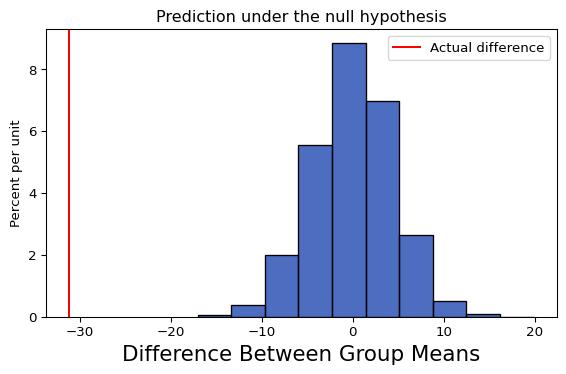
Let’s simulate 5000 times, creating a vector of 5000 differences. If we ask how many of the differences are greater than the observed difference?
None! That would suggest we can reject the null hypothesis (for those who have taken statistics, our empirical p-value is less than 1/5000).
Although this is not a statistics class, the goal here is to show you how could use some of the tools that we are learning about (i.e., the tools in your toolbox) to implement statistical analyses (and not just perform a pre-built analysis). And in particular to demonstrate the use of “vectorized” computations.
A note about vectorization
This “vectorized” approach is very powerful. And not as unfamiliar as it might seem. If you have ever created a formula in Excel in a single cell and then copied it to an entire column, then you have performed a “vectorized” computation. As we described earlier, the benefits of this approach are performance and programmer efficiency. We just implemented some very sophisticated computations very easily. And we did so with function calls, indexing and slicing just as we have done with strings, lists, etc. The challenge is that our tool box just got much bigger! We can’t possible know all the functions available. Instead what we will seek to cultivate is the knowledge that such a function should exist and where to start looking for it. As a practical matter that means there will be many links in our assignments and notes to online documentation that you will need to check out.
Plotting with Matplotlib
Matplotlib is a library for production-ready 2D-plotting (and more experimental 3D-plotting).
Before launching into this library, lets think about the features we would need/want to generate a plot:
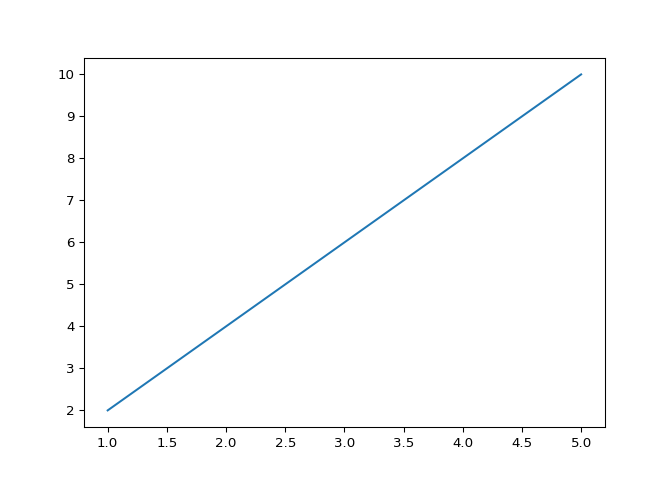
Note that after the plotting functions, we call the show() function to actually draw the plot on the screen. Why does the library work this way? So that we can make changes to the plot before rendering. That is we are now programmatically adding all the elements you might formerly have added in a GUI. The separate show step is how we indicate we are done with that configuration process. Note that you will need to close the plotting window before you can execute further commands in the shell.
The result is a nice figure with attractive defaults, etc. that we can save as an image, etc.
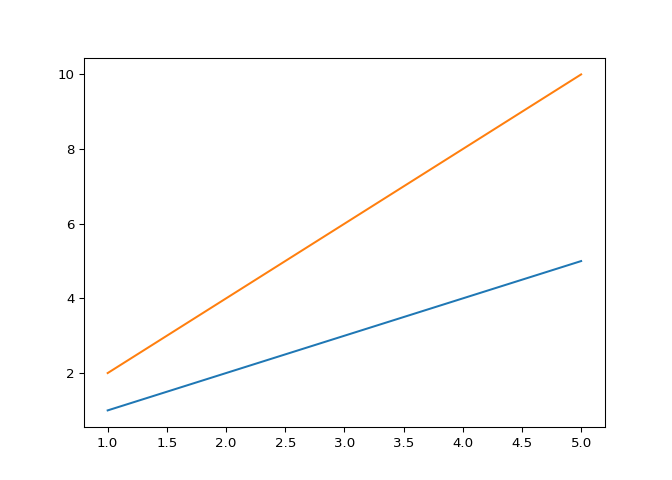
A more complex example here below. Here two different lines are plotted. Note plot can take any number of “x, y vector” pairs, or you can invoke plot multiple times.
x = [1, 2, 3, 4, 5]y1 = [1, 2, 3, 4, 5]y2 = [2, 4, 6, 8, 10]plt.plot(x, y1, x, y2)# Could also be two different plot callsplt.show()
Line plot with mulitple data series
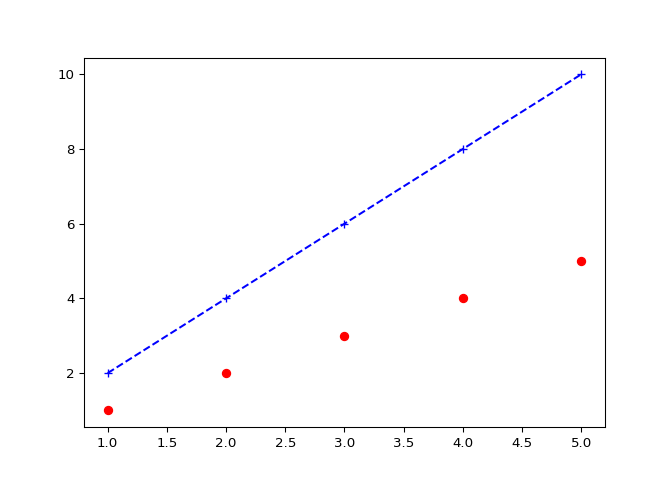
Now with additional formatting. Here we add an additional formatting string that controls the color, line and point style. Check out the documentation of this format string.
x = [1, 2, 3, 4, 5]y1 = [1, 2, 3, 4, 5]y2 = [2, 4, 6, 8, 10]plt.plot(x, y1, "ro")plt.plot(x, y2, "b+--")# Could also have been implemented as:# plt.plot(x, y1, "ro", x, y2, "b+--")plt.show()
More complex line plot with different formatting
In this case:
“r” : red
“o” : circle marker
“b” : blue
“+” : plus marker
“–” : dashed line style
Revisiting list vs set
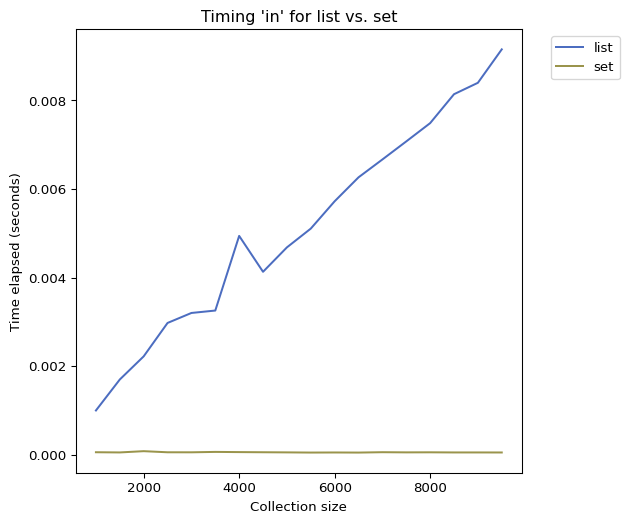
We previously ran an experiment comparing the query times for lists vs sets. The plot we looked at was made with a spreadsheet application. With Matplotlib, we can now generate that plot directly within Python. Check out lists_vs_sets_improved.py.
What would our plot look like:
x-axis is the size of the collection
y-axis is the execution time
Plot two lines (one each for list times and set times)
How could we add this to our original program? Previously we printed the results for each collection size as we ran the test. Doing so now makes it difficult to plot. Lets decouple those two operations, that is collect the data in one function and then either print or plot those results in a separate function.
In the former we return a tuple of lists. This is an approximation of a Table (or DataFrame) using built-in types. In the plotting code, we see:
plot: Plot the two lines in different colors
xlabel and ylabel: Add axis labels
title: Add plot title
legend: Add a legend
Integrating datascience and Matplotlib
Not surprisingly, datascience and Matplotlib, work well together. The key additions are below, which creates a Table and then plots the different series.
perf.plot("sizes")plt.xlabel("Collection size")plt.ylabel("Time elapsed (seconds)")plt.title("Timing 'in' for list vs. set")plt.show()
Performance comparison of querying a list and a set
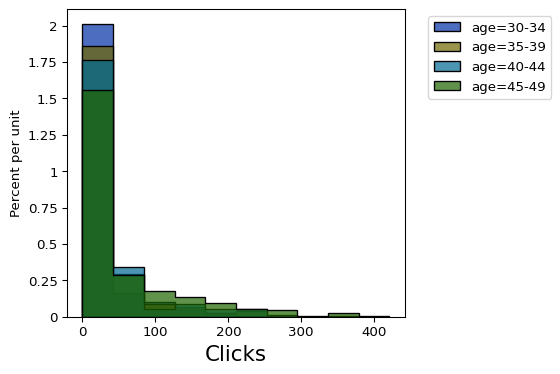
There are many more powerful integrations between these two libraries that I encourage you to investigate. For example we can use its built-in histogram plotting capabilities to compare the distributions of clicks grouped by age. As we observed above there is a noticeable difference in clicks.
clicks.hist('Clicks', group='age')plt.show()
We can similarly plot the simulated differences alongside the actual difference we observed!
ds.Table().with_column('Difference Between Group Means', sim_diffs).hist()plt.axvline(actual_diff, color="r", label="Actual difference")plt.title("Prediction under the null hypothesis")plt.legend()plt.show()